Password Manager Usage
Web access
https://vault.upgrayeddsgarage.com
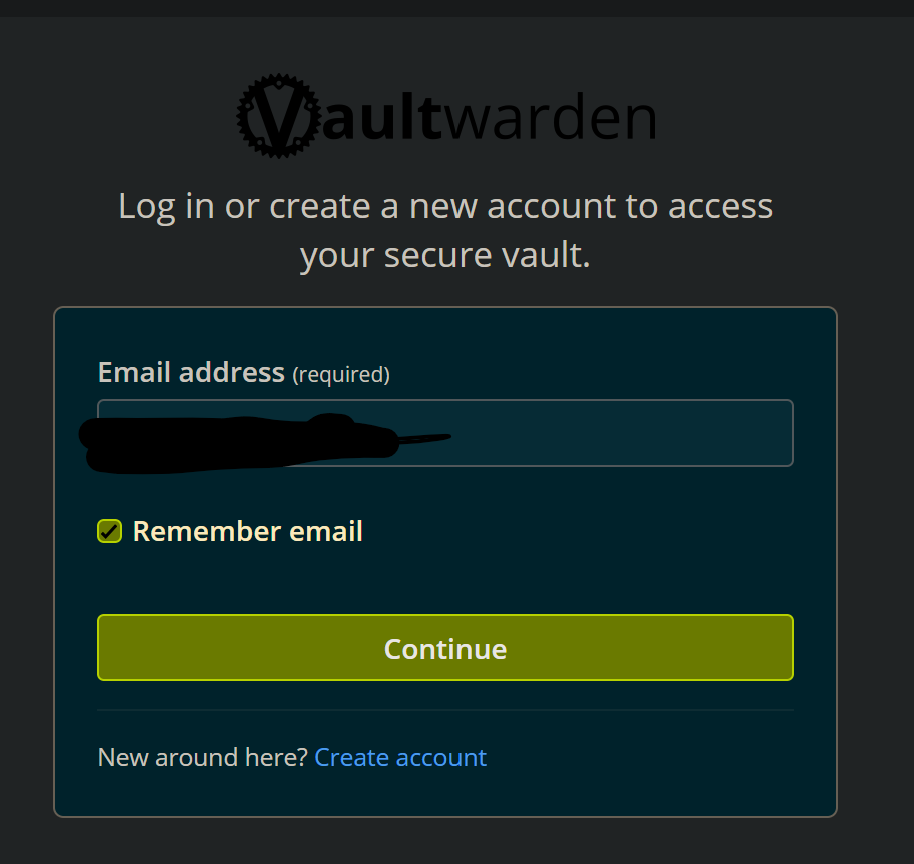
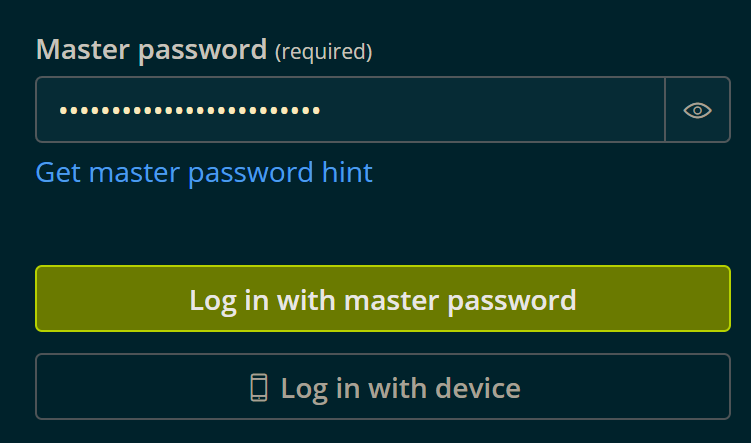
You're in! First thing you wanna do is import some passwords.
On the left, Tools > Import Data
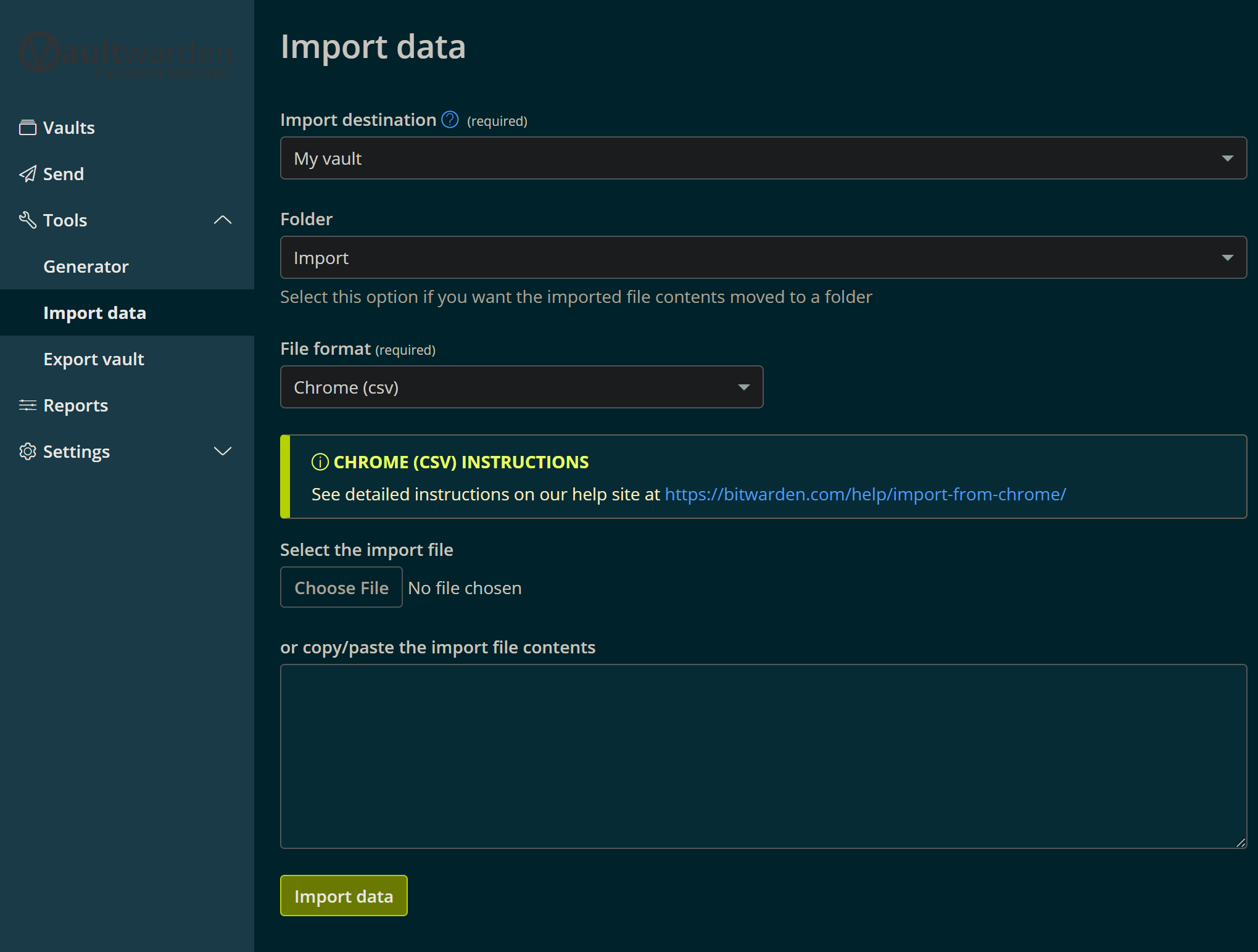
Configure your dropdowns
Your Vault is the private one
Folders can be setup before or after this, the Import Folder is already made so we can use that
File Format depends on the browser, its probably Chrome (idk how to get passwords out of samsung pass yet, gimme time)
It gives you a help link on how to export your passwords, its not crazy, but you might need your windows password handy
Choose the file that chrome spits out, and hit import!
Extensions and Apps
Chrome
https://chromewebstore.google.com/detail/bitwarden-password-manage/nngceckbapebfimnlniiiahkandclblb
Firefox
https://addons.mozilla.org/en-US/firefox/addon/bitwarden-password-manager/
Edge
Android
https://play.google.com/store/apps/details?id=com.x8bit.bitwarden
Apple
https://apps.apple.com/us/app/bitwarden-password-manager/id1137397744
Logging into the Self-Host
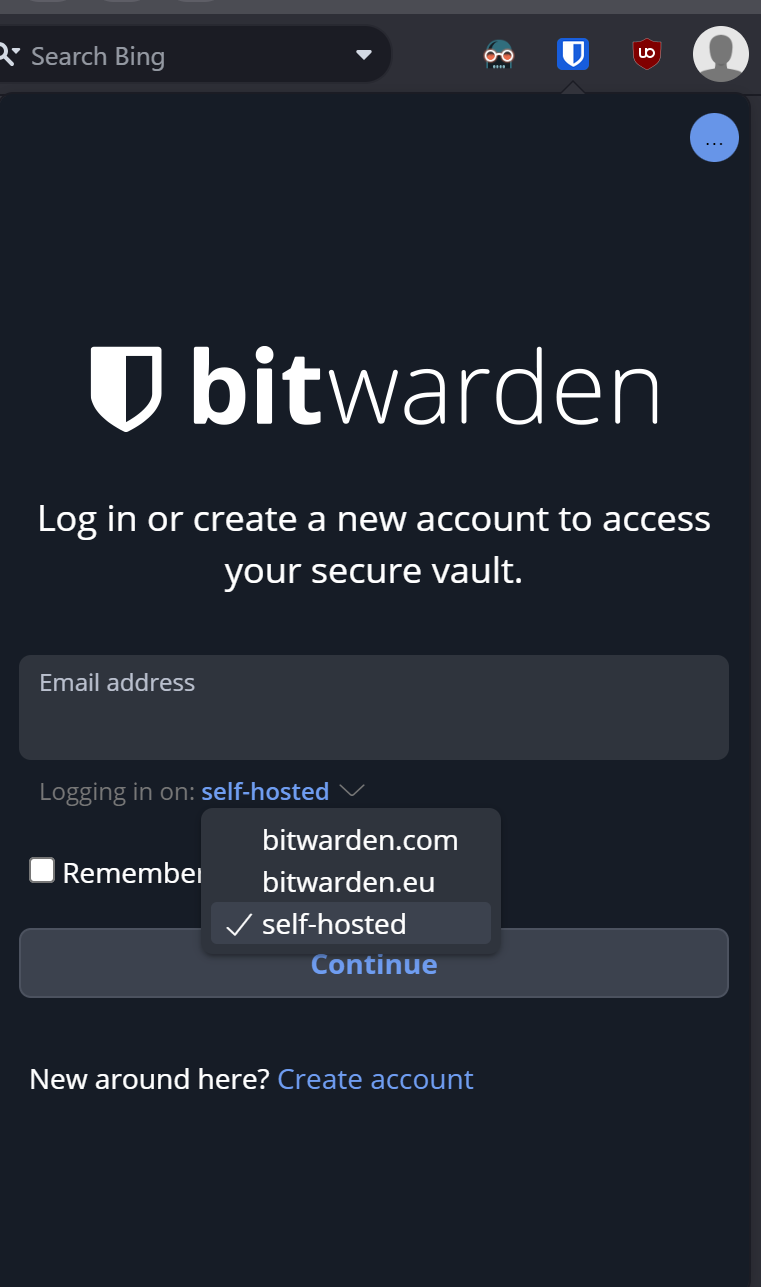
Open the app/extension
switch Logging in on: bitwarden.com to self-hosted
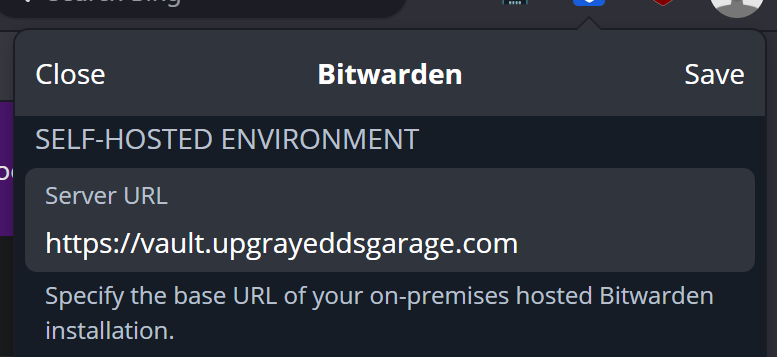
put our URL into the Server URL, there are more things underneath, we ignore that
hit save, it'll put you back to the front screen
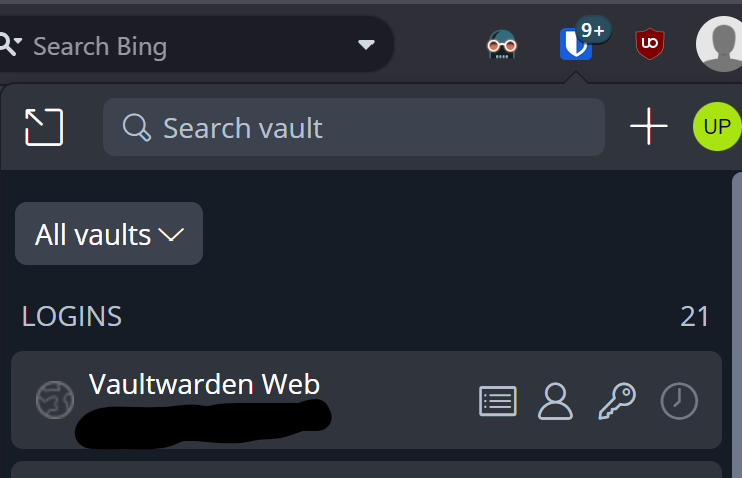
Put in your creds, and boom your in!
So what?
You get this cool Badge on Login pages, to autofill passwords just like browsers do, but its saved at Home, and private.
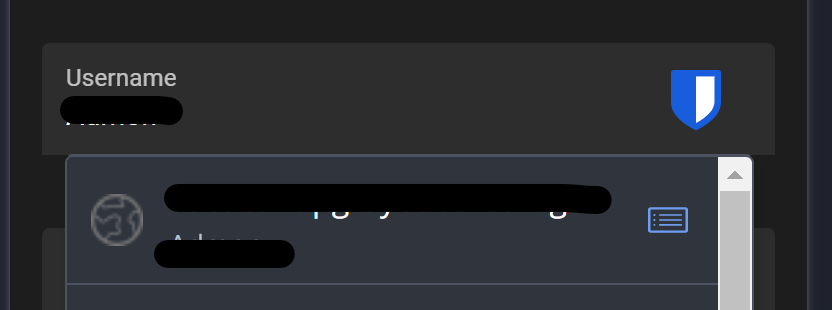
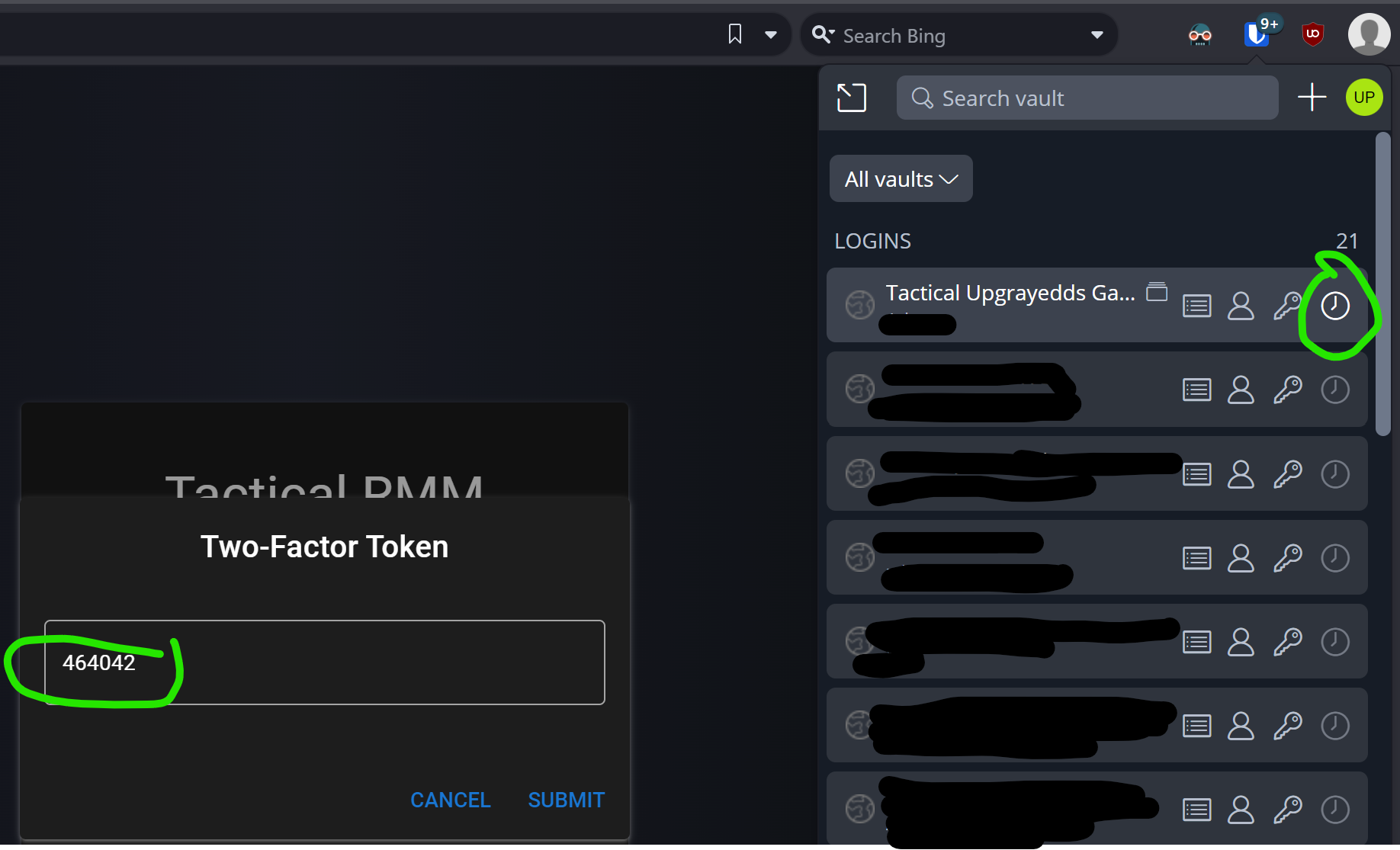
But MOSTLY because it supports 2FA codes, no more "hey text me the code"